
The first step to install Ubuntu natively is to download the official Ubuntu OS ISO file.
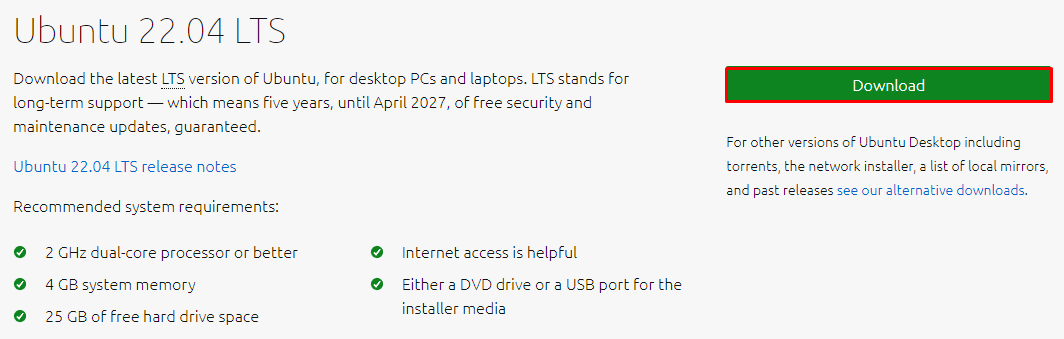
Users can also choose between Ubuntu Server and other Ubuntu flavors. However, the main Ubuntu Desktop version has all the essential features a beginner needs.
2. Create a Bootable USB
After
downloading the ISO file, you will need to create a bootable USB drive,
which will be used to install Ubuntu. To do so, you will have to use
third-party software, such as Rufus. We recommend downloading the portable version as it won’t require any installation and will be ready to use right away.
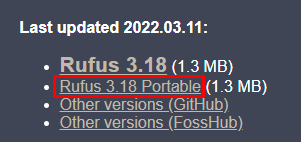
Just
open the executable file, and Rufus will start. Once done, ensure that
the USB drive is plugged in and select the Ubuntu ISO file.
Important! For the partition scheme, select GPT if you are using a newer computer. Otherwise, go with MBR.
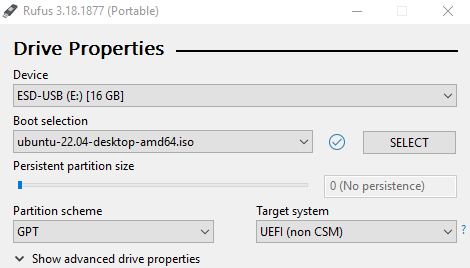
As for Format Options, leave the default file system and cluster size values and click on START.

Important! Creating a bootable USB stick will wipe out all the data from the USB drive. Make sure to back it up before proceeding.
Give it around ten minutes, and the bootable USB drive will be ready.
3. Install Ubuntu OS From the USB
With
the Ubuntu bootable drive ready, proceed with the installation. For
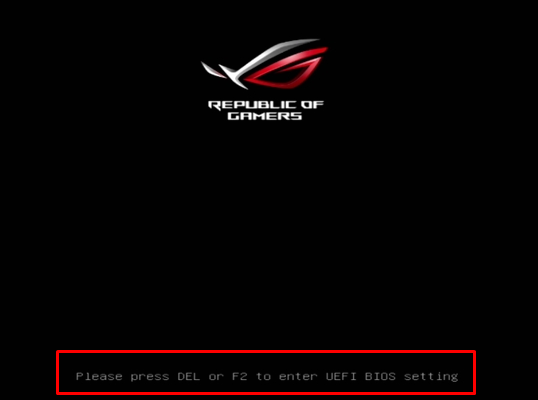
that, restart your computer and access BIOS. Usually, BIOS can be
reached by pressing the DEL or F2 keys on the keyboard whenever a similar screen shows up:
Pro Tip
In case you missed the BIOS screen, restart your computer and try again.
Once in BIOS, look for the boot menu and set the order to make
the USB drive the first one on the list. It should look like this:
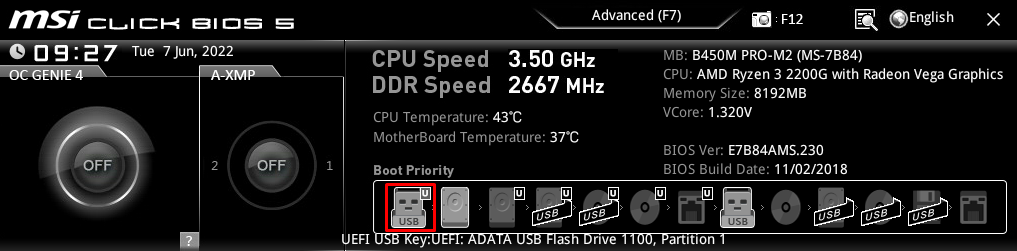
Now
save and close BIOS. Give it a few minutes, and the Ubuntu installer
should start. Once it begins, proceed to the next section about the
Ubuntu installer.
How to Install Ubuntu on Windows Using VirtualBox
If
you don’t want to wipe your hard drive completely, go with the
VirtualBox installation method. This will install Ubuntu inside a
virtual machine, making it completely independent of the primary system.
This
method is excellent for those who want to test out different Linux
distributions or install third-party software packages for Ubuntu.
Pro Tip
The virtual machine installation method allows you to install Ubuntu alongside other operating systems on the same computer.
1. Download and Install VirtualBox
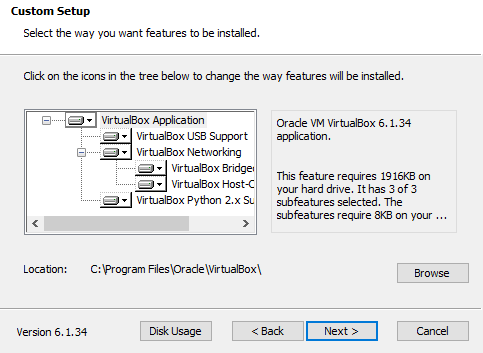
Start by downloading the newest version of Oracle VirtualBox. Once done, open the executable file and proceed with the installation.
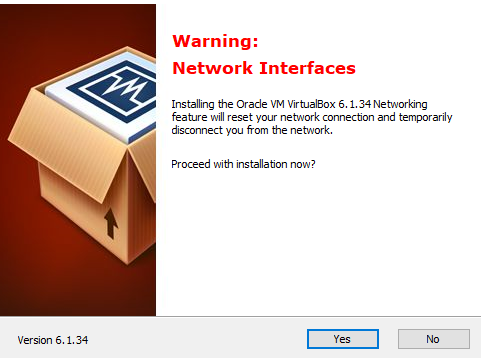
When asked about network interfaces, select Yes. Note that the internet connection might go down for a few minutes during the installation.
Next, proceed with the default installation settings.
2. Download and Install Linux ISO
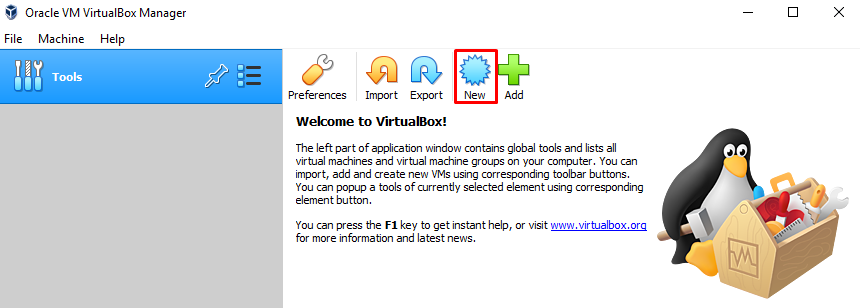
After installing VirtualBox, open it by using the desktop shortcut and select New to create a new virtual machine.
Specify
the virtual machine name and select the amount of RAM to be assigned.
We recommend giving half the amount of the main system. For example, if
the computer has 8 GB of RAM, assign 4 GB to the virtual machine.
There
is also an option to specify a virtual hard disk since it’s a fresh
installation – go with the default settings and click on Create.
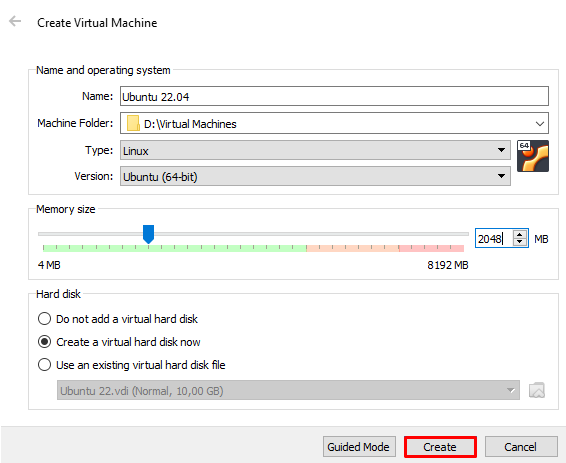
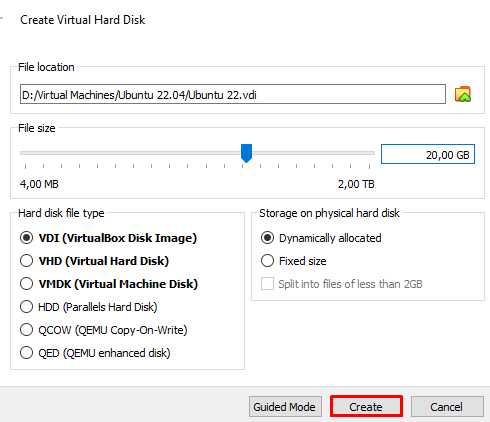
Next up, choose the file location for the virtual machine, specify file size and click on Create.
We will be keeping the default hard disk file type and dynamically
allocated storage. Dynamic storage saves a lot of space because it grows
as the data inside the virtual disk increases. On the other hand, fixed
storage takes up the full amount right from the start.
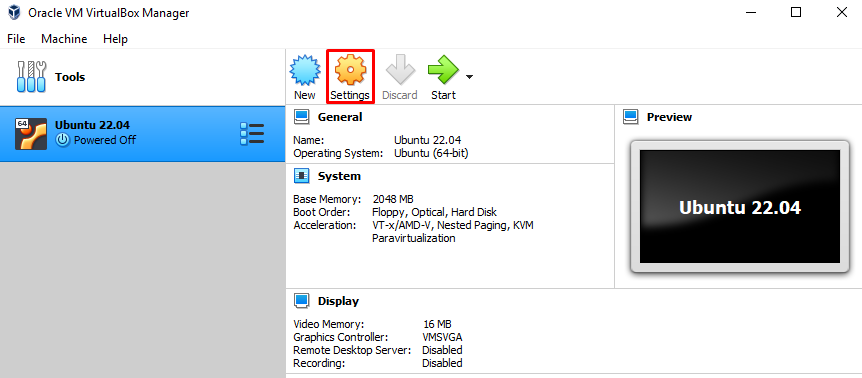
The virtual machine is now created. However, it will show an error message about no boot device. To fix it, select Settings, as you will need to assign the Ubuntu ISO file downloaded earlier.
Once in the settings, open the Storage section and assign the ISO file to the Controller: IDE.
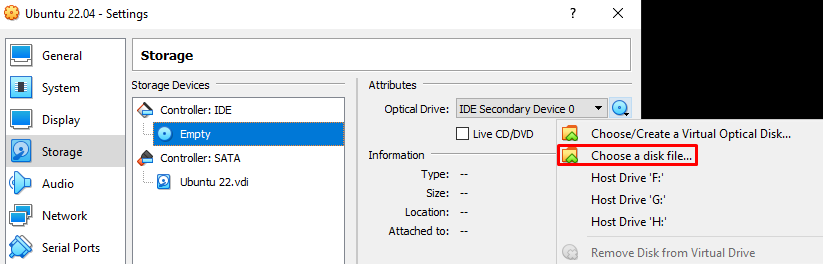
The end result will look like this:
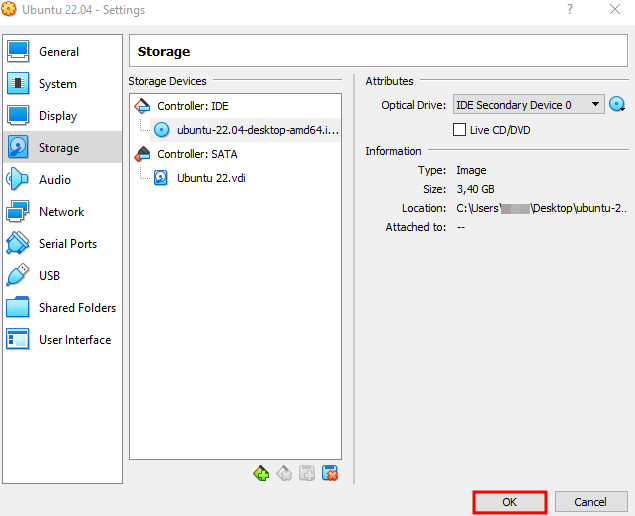
Now, you can start the virtual machine without any issues.
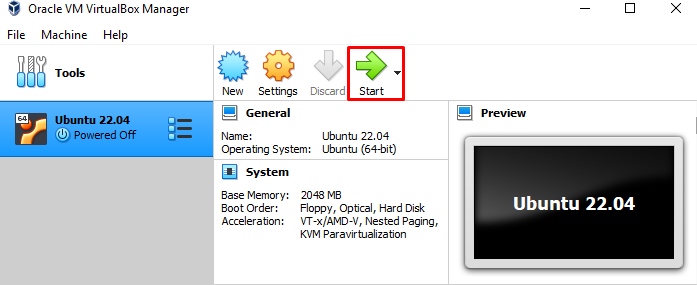
Give it a few minutes, and the Ubuntu installer should start. Then, proceed to the next section about the Ubuntu installer.
How to Proceed With Ubuntu Installer
When the system boots to the new Ubuntu installation screen, select the Try or Install Ubuntu option.
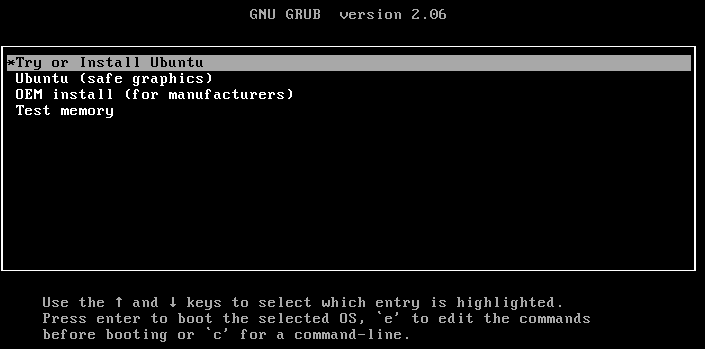
Select the installer language and choose the Install Ubuntu option
in the next step. There is also an option to test Ubuntu. In that case,
none of the hard drive files would get wiped. However, we are
proceeding with the full installation.
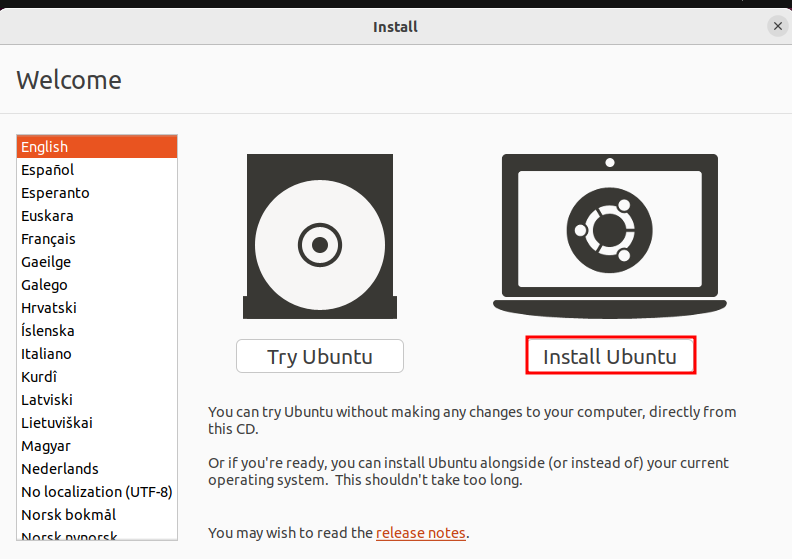
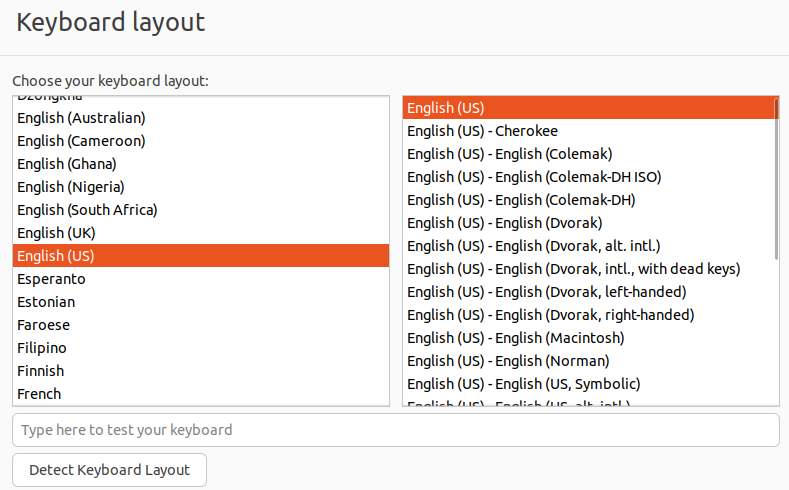
Choose the preferred keyboard layout and continue.
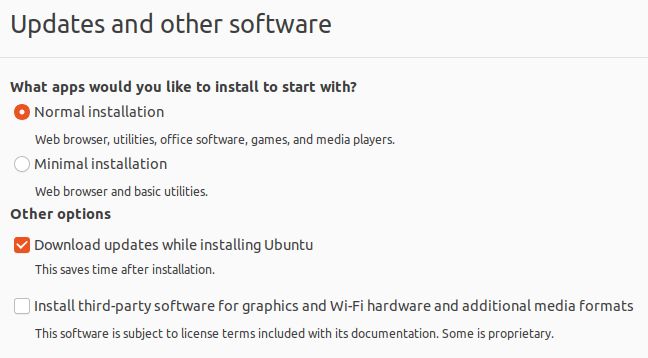
Now you can choose between the Normal and Minimal installations. We recommend sticking with the Normal installation
since it offers more helpful utilities and software packages.
Additionally, select the option to download updates to get the latest
possible version.
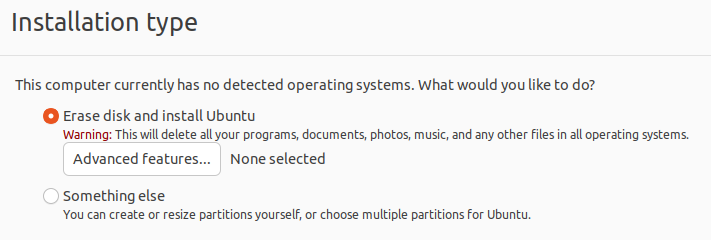
For the Installation type, choose Erase disk and install Ubuntu.
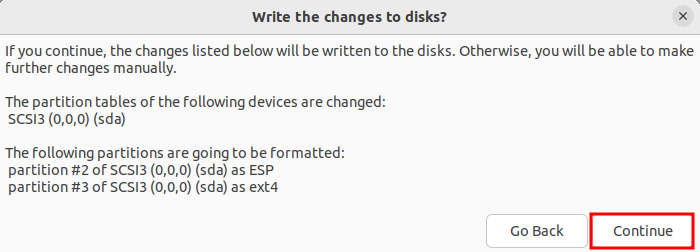
When asked about partition, click on Continue.
Next up, select the timezone.
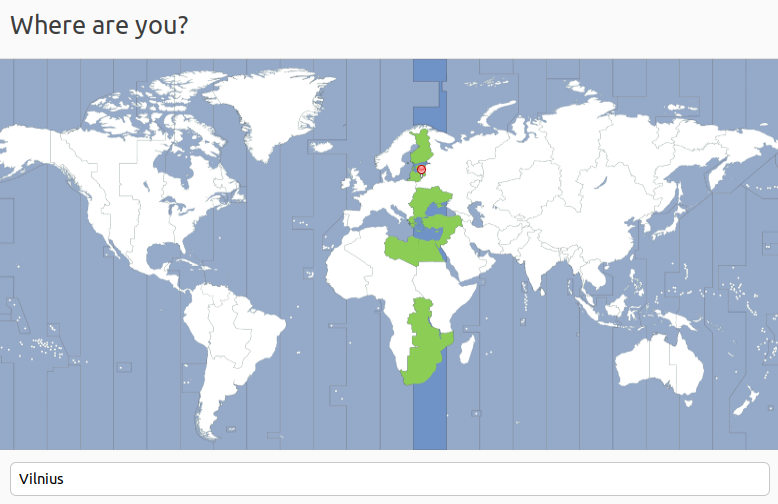
Lastly, fill in the name, username, and password.
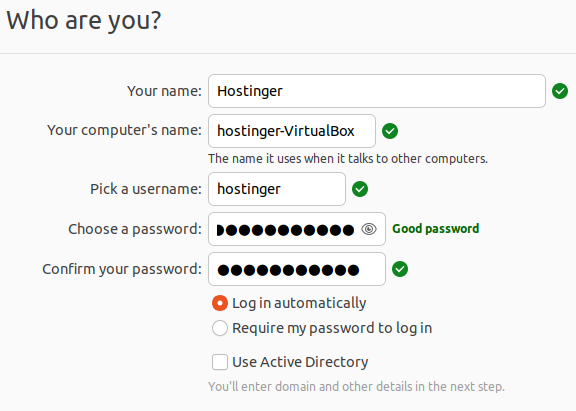
After
clicking continue, Ubuntu installation will start. Give it about 20
minutes and restart the computer after installation is done. Once the
computer boots up, you should see the default welcome screen.
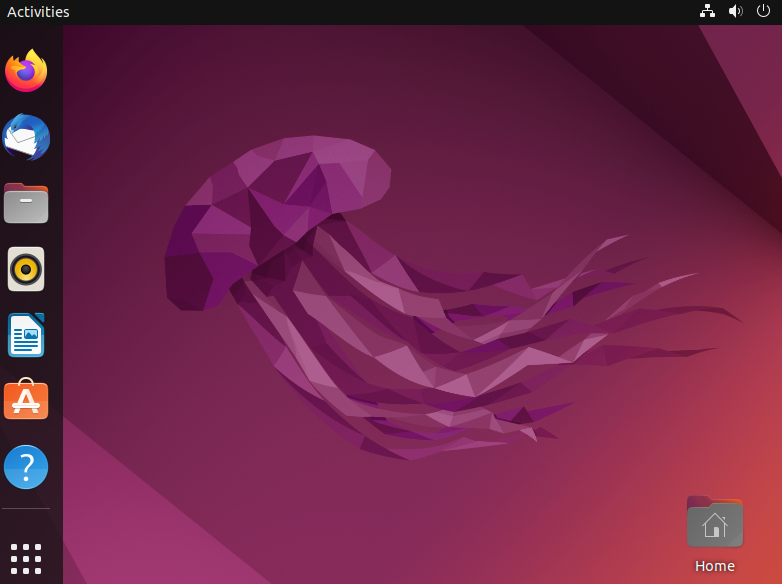
Congratulations – you have successfully installed Ubuntu on your computer.