How to Format Windows 10 Safely: Step-by-Step Guide & Performance Optimization
Posted: Mon May 11, 2026 10:17 pm
Is your Windows 10 PC slow or glitchy,
needing a fresh start? Formatting can help but risks data loss if done
wrong. This guide offers a safe, clear way to reformat Windows 10, with
trusted backup methods and post-format tweaks. Avoid sketchy tools and
pricey software. Use WPS Office as a free, lightweight alternative to
keep your PC fast and productive.
Part 1: How to Format Windows 10 – Step-by-Step Process

Format Windows 10 – Step-by-Step Process
Formatting
Windows 10 is like hitting the reset button, but it’s not without
risks. The safest way is using Microsoft’s Media Creation Tool, which
downloads a legit Windows 10 ISO—Reddit’s r/Windows10 users warn against
fake ISOs from shady sites that can sneak in malware. You’ve got two
options: Reset this PC (Settings > Update & Security >
Recovery) keeps some files but may leave bloat, while a full reformat
wipes everything for a clean slate, risking all data if you skip
backups. Before starting, check your boot mode (UEFI or Legacy) in
System Information (msinfo32) and back up drivers with tools like Double
Driver, as TenForums tutorials stress, to avoid post-format hardware
woes. Here’s how to do it right.
Step-by-Step: Formatting Windows 10
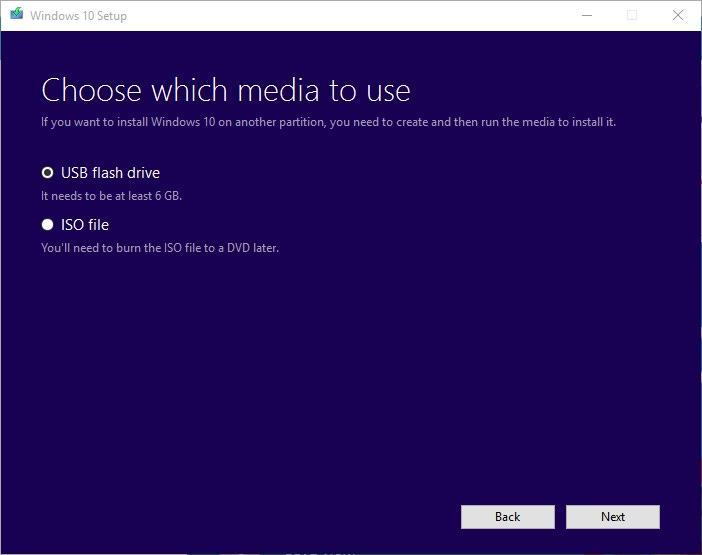
Step 1: Download the Media Creation Tool from microsoft.com, run it, and select Create installation media (USB or ISO).
Download the Media Creation Tool
Step 2: Insert an 8GB+ USB, choose USB flash drive in the tool, and let it prepare a bootable drive (takes 10–30 minutes).
Step 3: Restart your PC, enter BIOS (F2, Del, or similar key at boot), set the USB as the first boot device, and save changes.

Restart your PC
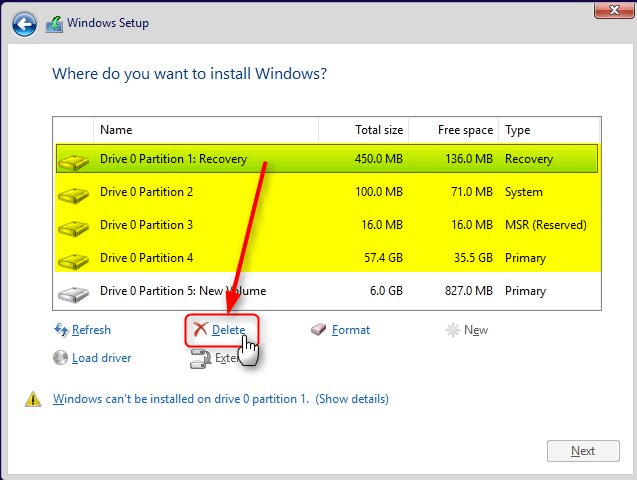
Step 4: Boot from the USB, select Custom: Install Windows only, delete the system partition (back up first!), and install Windows 10 on the unallocated space.
Boot from the USB
Step 5: Follow prompts to complete setup, then reinstall drivers from your backup or manufacturer’s website.
Safety Checks
used the Media Creation Tool for a clean install, and my PC felt
brand-new, but forgetting to back up drivers meant a frantic trip to
Dell’s site.
100% secure
Part 2: Backup Before Formatting Windows 10
Backing
up is non-negotiable before a reformat Windows 10 to prevent data loss.
Free tools like File History (built-in to Windows) or EaseUS Todo
Backup are popular on Reddit for their simplicity—File History saves to
external drives, while EaseUS offers full disk imaging. Cloud options
like Google Drive (15GB free) or OneDrive (5GB free) work, but slow
uploads and storage limits can frustrate. Verify backup integrity with
checksum tools like MD5 & SHA, as TenForums suggests, to ensure
files aren’t corrupted.
Step-by-Step: Backing Up Files
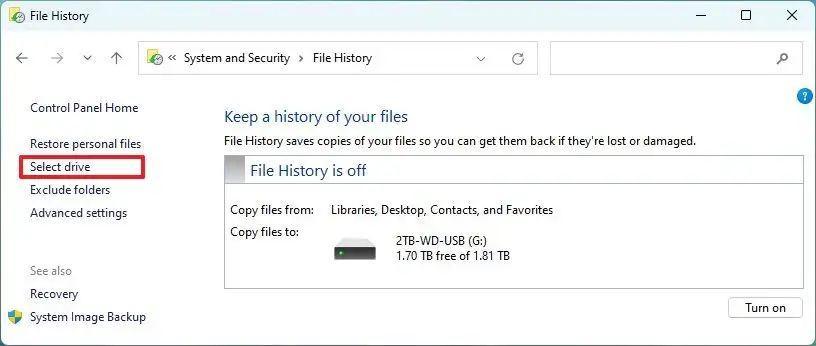
Step 1: Connect an external drive, go to Settings > Update & Security > Backup, and turn on File History to select folders (e.g., Documents, Pictures).
Connect an external drive
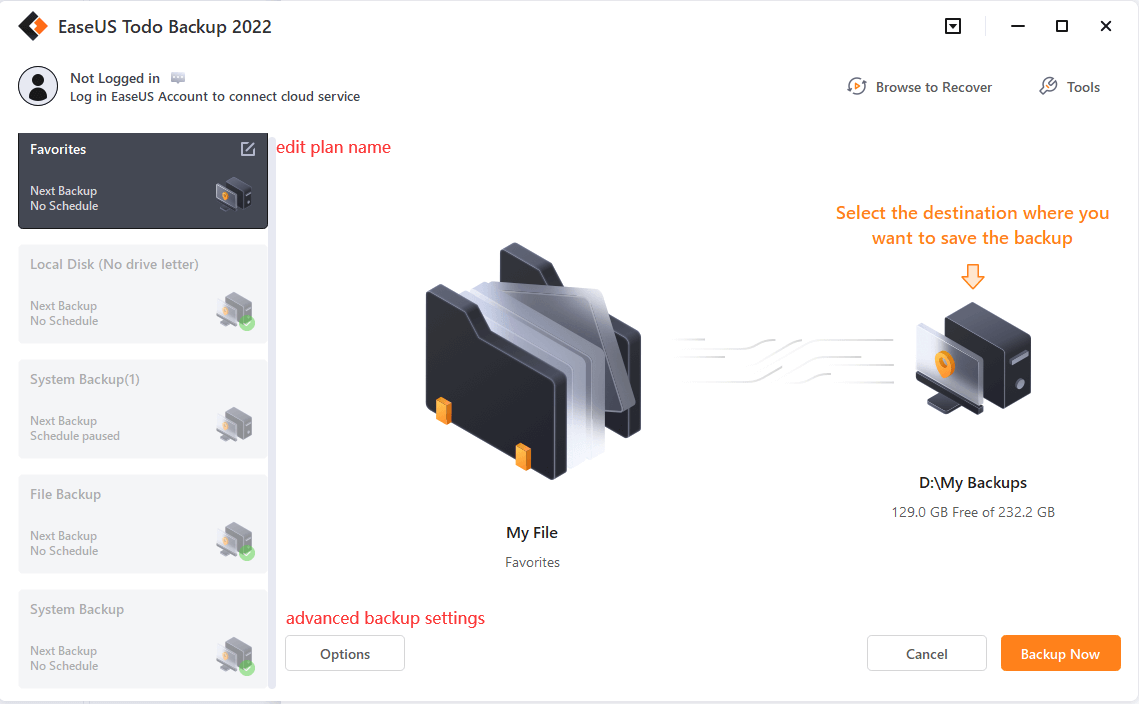
Step 2: Alternatively, download EaseUS Todo Backup Free, launch it, select File Backup, choose folders, and save to your external drive.
download EaseUS Todo Backup Free
Step 3: For cloud, upload critical files to Google Drive or OneDrive via their web interfaces or desktop apps, ensuring you stay under free storage limits.

upload critical files
Step 4: Verify backup integrity with WinMD5—generate a checksum for your backup file and compare it after copying to confirm no corruption.
Step 5: Test restoring a few files to ensure the backup works before formatting.
Backup Tips
History was my go-to for quick backups, but EaseUS’s compression saved
space on my external drive. Checking checksums gave me peace of mind.
Part 3: Optimize Windows 10 After Formatting
A
fresh Windows 10 install needs lightweight software and tweaks to stay
fast. Install Firefox for a lean browser, Malwarebytes for antivirus,
and Snappy Driver Installer for driver updates, as recommended on
XDA-Developers. Disable startup bloatware via Task Manager
(Ctrl+Shift+Esc > Startup tab), and optimize SSDs by enabling Trim
(search “Defragment and Optimize Drives”), per YouTube tutorials with
500k+ views. Reddit’s r/Windows10 cautions against heavy suites like
Microsoft Office, which slow down fresh systems.
Step-by-Step: Optimizing Windows 10
Step 1: Install Firefox from mozilla.org, Malwarebytes from malwarebytes.com, and Snappy Driver Installer from snappy-driver-installer.org.
Step 2: Open Task Manager (Ctrl + Shift + Esc), go to Startup, and disable non-essential apps (e.g., Skype, Adobe) to speed up boot.
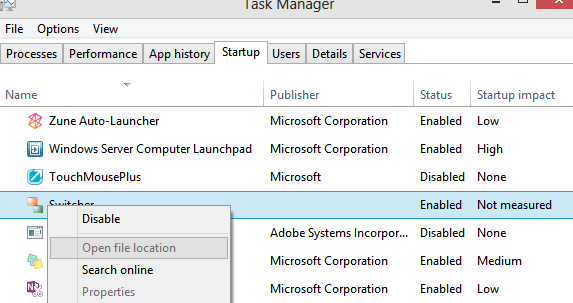
Open Task Manager
Step 3: For SSDs, open Defragment and Optimize Drives (search in Start), select your SSD, and ensure “Scheduled optimization” is enabled for Trim.
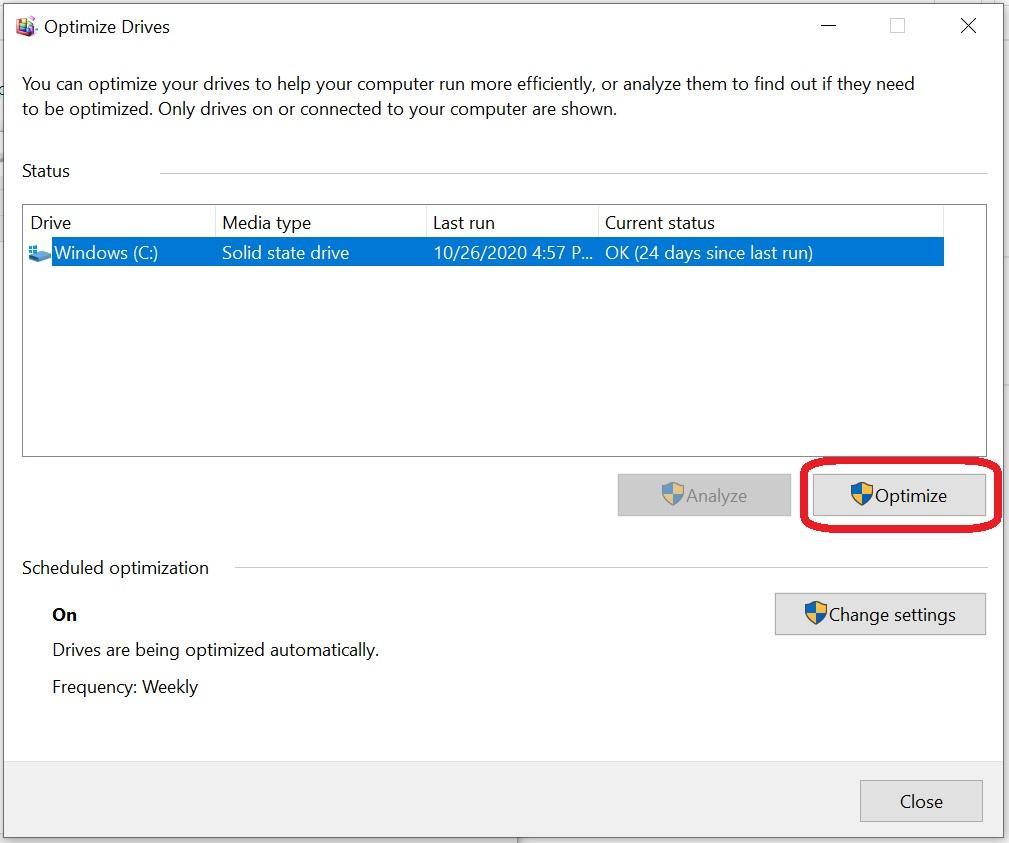
open Defragment and Optimize Drives
Step 4: Disable
bloatware services (Win + R, type “msconfig,” go to Services, check
“Hide all Microsoft services,” disable third-party ones like McAfee).
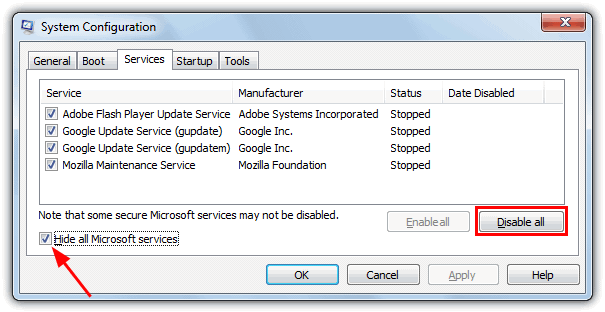
Disable bloatware services
Step 5: Run Windows Update (Settings > Update & Security) to install latest patches, then test performance with apps like Firefox.

Run Windows Update
needing a fresh start? Formatting can help but risks data loss if done
wrong. This guide offers a safe, clear way to reformat Windows 10, with
trusted backup methods and post-format tweaks. Avoid sketchy tools and
pricey software. Use WPS Office as a free, lightweight alternative to
keep your PC fast and productive.
Part 1: How to Format Windows 10 – Step-by-Step Process
Format Windows 10 – Step-by-Step Process
Formatting
Windows 10 is like hitting the reset button, but it’s not without
risks. The safest way is using Microsoft’s Media Creation Tool, which
downloads a legit Windows 10 ISO—Reddit’s r/Windows10 users warn against
fake ISOs from shady sites that can sneak in malware. You’ve got two
options: Reset this PC (Settings > Update & Security >
Recovery) keeps some files but may leave bloat, while a full reformat
wipes everything for a clean slate, risking all data if you skip
backups. Before starting, check your boot mode (UEFI or Legacy) in
System Information (msinfo32) and back up drivers with tools like Double
Driver, as TenForums tutorials stress, to avoid post-format hardware
woes. Here’s how to do it right.
Step-by-Step: Formatting Windows 10
Step 1: Download the Media Creation Tool from microsoft.com, run it, and select Create installation media (USB or ISO).
Download the Media Creation Tool
Step 2: Insert an 8GB+ USB, choose USB flash drive in the tool, and let it prepare a bootable drive (takes 10–30 minutes).
Step 3: Restart your PC, enter BIOS (F2, Del, or similar key at boot), set the USB as the first boot device, and save changes.
Restart your PC
Step 4: Boot from the USB, select Custom: Install Windows only, delete the system partition (back up first!), and install Windows 10 on the unallocated space.
Boot from the USB
Step 5: Follow prompts to complete setup, then reinstall drivers from your backup or manufacturer’s website.
Safety Checks
- UEFI Mode: Ensure BIOS matches your system’s boot mode (msinfo32 > System Summary > BIOS Mode) to avoid install errors.
- Driver Backup: Use Double Driver to save drivers, as missing ones can break hardware functionality post-format.
- Data Risk: Full reformat erases all data—back up first (see Part 2). Reset this PC may keep files but risks residual bloat.
used the Media Creation Tool for a clean install, and my PC felt
brand-new, but forgetting to back up drivers meant a frantic trip to
Dell’s site.
100% secure
Part 2: Backup Before Formatting Windows 10
Backing
up is non-negotiable before a reformat Windows 10 to prevent data loss.
Free tools like File History (built-in to Windows) or EaseUS Todo
Backup are popular on Reddit for their simplicity—File History saves to
external drives, while EaseUS offers full disk imaging. Cloud options
like Google Drive (15GB free) or OneDrive (5GB free) work, but slow
uploads and storage limits can frustrate. Verify backup integrity with
checksum tools like MD5 & SHA, as TenForums suggests, to ensure
files aren’t corrupted.
Step-by-Step: Backing Up Files
Step 1: Connect an external drive, go to Settings > Update & Security > Backup, and turn on File History to select folders (e.g., Documents, Pictures).
Connect an external drive
Step 2: Alternatively, download EaseUS Todo Backup Free, launch it, select File Backup, choose folders, and save to your external drive.
download EaseUS Todo Backup Free
Step 3: For cloud, upload critical files to Google Drive or OneDrive via their web interfaces or desktop apps, ensuring you stay under free storage limits.
upload critical files
Step 4: Verify backup integrity with WinMD5—generate a checksum for your backup file and compare it after copying to confirm no corruption.
Step 5: Test restoring a few files to ensure the backup works before formatting.
Backup Tips
- File History: Simple but lacks advanced compression; good for basic needs.
- EaseUS: Faster, with incremental backups, but free version has limits.
- Cloud Limits: Google Drive’s 15GB beats OneDrive’s 5GB, but large backups may need paid tiers.
History was my go-to for quick backups, but EaseUS’s compression saved
space on my external drive. Checking checksums gave me peace of mind.
Part 3: Optimize Windows 10 After Formatting
A
fresh Windows 10 install needs lightweight software and tweaks to stay
fast. Install Firefox for a lean browser, Malwarebytes for antivirus,
and Snappy Driver Installer for driver updates, as recommended on
XDA-Developers. Disable startup bloatware via Task Manager
(Ctrl+Shift+Esc > Startup tab), and optimize SSDs by enabling Trim
(search “Defragment and Optimize Drives”), per YouTube tutorials with
500k+ views. Reddit’s r/Windows10 cautions against heavy suites like
Microsoft Office, which slow down fresh systems.
Step-by-Step: Optimizing Windows 10
Step 1: Install Firefox from mozilla.org, Malwarebytes from malwarebytes.com, and Snappy Driver Installer from snappy-driver-installer.org.
Step 2: Open Task Manager (Ctrl + Shift + Esc), go to Startup, and disable non-essential apps (e.g., Skype, Adobe) to speed up boot.
Open Task Manager
Step 3: For SSDs, open Defragment and Optimize Drives (search in Start), select your SSD, and ensure “Scheduled optimization” is enabled for Trim.
open Defragment and Optimize Drives
Step 4: Disable
bloatware services (Win + R, type “msconfig,” go to Services, check
“Hide all Microsoft services,” disable third-party ones like McAfee).
Disable bloatware services
Step 5: Run Windows Update (Settings > Update & Security) to install latest patches, then test performance with apps like Firefox.
Run Windows Update