Installing Plesk on Ubuntu VPS: Step-by-Step Guide
Posted: Wed May 13, 2026 8:03 pm
Installing Plesk on Ubuntu VPS: Step-by-Step Guide
Now that your system is prepared, it’s time to
install Plesk — entirely from the command line. The process is
automated, straightforward, and designed for remote server environments.
No GUI, no browser, no interruptions. Just a reliable, script-friendly
sequence that gets Plesk up and running on your Ubuntu 24.04 VPS with
minimal input. Follow the steps below to complete the installation
securely and efficiently.
Updating the System and Setting Hostname
Before installing Plesk, start with a clean and
current system state. Outdated packages or misconfigurations can cause
issues during installation, especially with dependencies and security
components. First, update the package index and upgrade all installed
software:
This ensures you’re running the latest kernel,
security patches, and system libraries — a must for stability and
compliance in production environments. Next, set a proper fully
qualified domain name (FQDN) for your server. Plesk relies on the
hostname for license validation, SSL provisioning, and internal service
coordination. Use hostnamectl to configure it:
Replace server.yourdomain.com with your actual FQDN. Verify the change took effect:
You should see the configured hostname in the
output. Now, ensure the system resolves it locally. Edit /etc/hosts:
Add a line mapping your server’s public IP to the FQDN:
Save and exit. This local resolution is
essential — Plesk checks it during setup, and skipping it can lead to
silent failures or post-install issues. With the system updated and
hostname correctly set, you're one step closer to a seamless Plesk
installation.
Install Plesk via Command Line (Terminal-Only Installer)
Plesk is designed with server automation in
mind, and its terminal-only installer makes it a strong fit for headless
VPS environments. There’s no need to launch a browser or rely on a
desktop interface — the entire installation runs from the command line,
making it ideal for remote administration and scripted deployments. The
process starts by downloading the official Plesk installer script. Use
wget to fetch it directly from Plesk’s repository:
Once downloaded, make the script executable:
Now you're ready to begin. The installer
supports a range of options to customize the setup, but for most VPS
deployments, the default “Typical” installation covers everything you
need: web server management (Apache and Nginx), PHP, DNS, email,
security tools, and database support. To run a fully automated,
unattended installation, use this command:
This tells the installer to:
required packages and configuring services as needed. You’ll see
real-time progress in the terminal — no guesswork. Logs are streamed
directly to stdout, so you can monitor each phase, from dependency
resolution to final setup. Depending on your server’s connection and
performance, installation takes 10–20 minutes. Once complete, the
terminal displays a summary with the admin URL, default login, and
security notes.
No reboot is required. Plesk services start
automatically, and you can access the web interface securely at http://your-server-ip:8443.
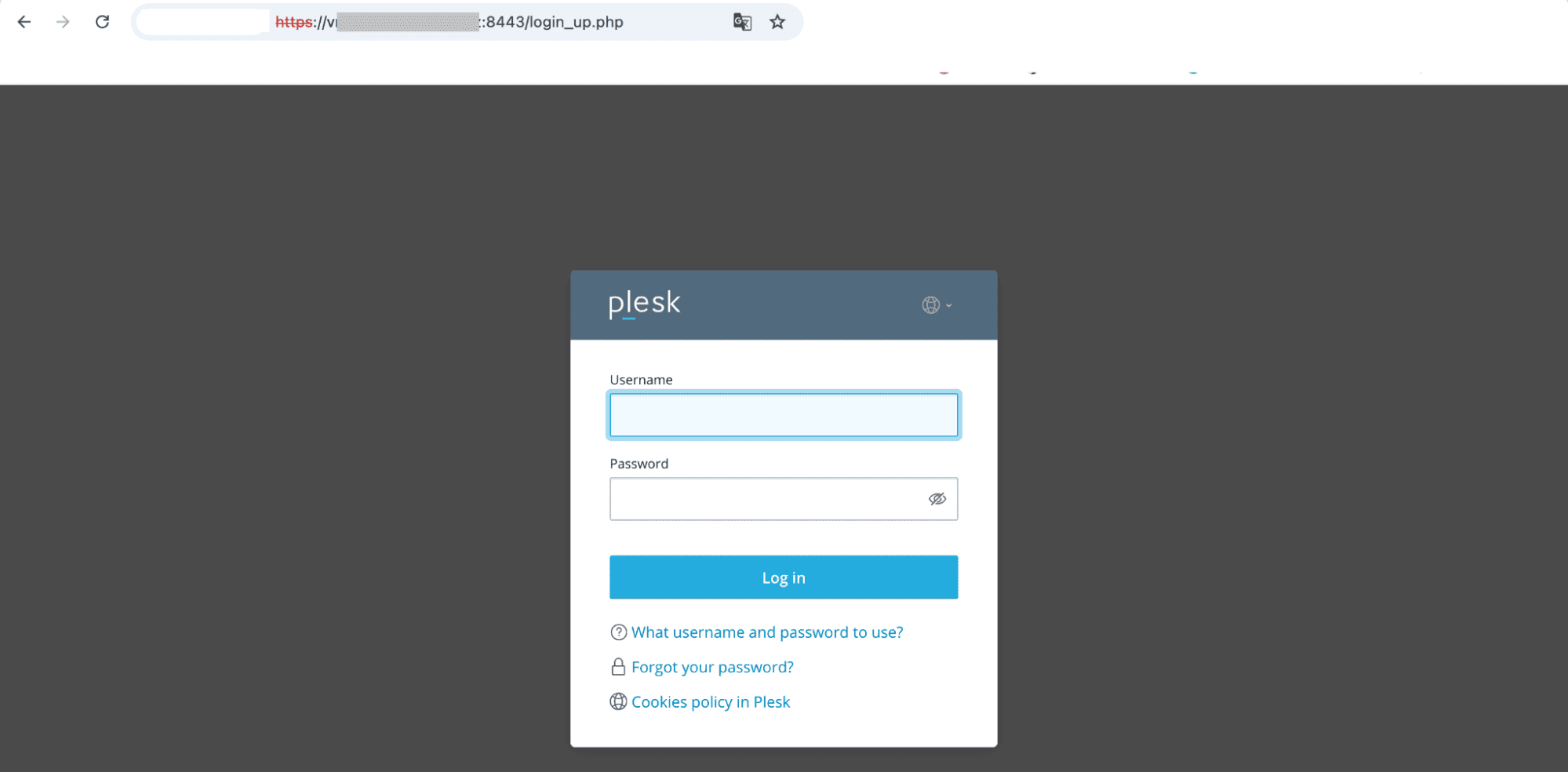
Because the entire process is script-driven, you
can reuse the same command across multiple servers — perfect for
consistent, repeatable deployments in DevOps or managed hosting
workflows.
More Information
Once Plesk is up and running, the official
documentation is your go-to resource for deep dives into configuration,
automation, and troubleshooting. Plesk maintains a comprehensive
knowledge base at docs.plesk.com,
covering everything from DNS management to server hardening, CLI
utilities, and API usage — all searchable and version-specific for
Ubuntu 24.04. Regular updates are a key part of maintaining a secure and
efficient environment. Plesk delivers security patches, bug fixes, and
feature upgrades on a predictable schedule. These can be applied
directly through the web interface or via the command line using `plesk
installer`, ensuring your system stays current without downtime.
For real-world solutions and peer insights, the
Plesk community forums are active and well-moderated, with input from
both users and Plesk engineers. If you run into edge cases — like
integration with custom firewalls or third-party DNS providers — you’ll
often find a tested workaround there. Enterprise users also have access
to official support with response-level options. Whether you're planning
a large-scale deployment or debugging a failed extension install, these
resources help keep your infrastructure stable and future-ready.
Staying connected to these channels means you don’t just maintain Plesk —
you make the most of it.
Now that your system is prepared, it’s time to
install Plesk — entirely from the command line. The process is
automated, straightforward, and designed for remote server environments.
No GUI, no browser, no interruptions. Just a reliable, script-friendly
sequence that gets Plesk up and running on your Ubuntu 24.04 VPS with
minimal input. Follow the steps below to complete the installation
securely and efficiently.
Updating the System and Setting Hostname
Before installing Plesk, start with a clean and
current system state. Outdated packages or misconfigurations can cause
issues during installation, especially with dependencies and security
components. First, update the package index and upgrade all installed
software:
Code: Select all
sudo apt update && sudo apt upgrade -ysecurity patches, and system libraries — a must for stability and
compliance in production environments. Next, set a proper fully
qualified domain name (FQDN) for your server. Plesk relies on the
hostname for license validation, SSL provisioning, and internal service
coordination. Use hostnamectl to configure it:
Code: Select all
sudo hostnamectl set-hostname server.yourdomain.comCode: Select all
hostnamectl statusoutput. Now, ensure the system resolves it locally. Edit /etc/hosts:
Code: Select all
sudo nano /etc/hostsCode: Select all
your.server.ip.address server.yourdomain.com serveressential — Plesk checks it during setup, and skipping it can lead to
silent failures or post-install issues. With the system updated and
hostname correctly set, you're one step closer to a seamless Plesk
installation.
Install Plesk via Command Line (Terminal-Only Installer)
Plesk is designed with server automation in
mind, and its terminal-only installer makes it a strong fit for headless
VPS environments. There’s no need to launch a browser or rely on a
desktop interface — the entire installation runs from the command line,
making it ideal for remote administration and scripted deployments. The
process starts by downloading the official Plesk installer script. Use
wget to fetch it directly from Plesk’s repository:
Code: Select all
wget https://autoinstall.plesk.com/plesk-installerCode: Select all
chmod +x plesk-installersupports a range of options to customize the setup, but for most VPS
deployments, the default “Typical” installation covers everything you
need: web server management (Apache and Nginx), PHP, DNS, email,
security tools, and database support. To run a fully automated,
unattended installation, use this command:
Code: Select all
sudo ./plesk-installer
--select-product-id=plesk --select-release-latest
--installation-type=Typical- Target the latest stable version of Plesk.
- Install the standard feature set.
- Operate in console mode with no interactive prompts.
required packages and configuring services as needed. You’ll see
real-time progress in the terminal — no guesswork. Logs are streamed
directly to stdout, so you can monitor each phase, from dependency
resolution to final setup. Depending on your server’s connection and
performance, installation takes 10–20 minutes. Once complete, the
terminal displays a summary with the admin URL, default login, and
security notes.
No reboot is required. Plesk services start
automatically, and you can access the web interface securely at http://your-server-ip:8443.
Because the entire process is script-driven, you
can reuse the same command across multiple servers — perfect for
consistent, repeatable deployments in DevOps or managed hosting
workflows.
More Information
Once Plesk is up and running, the official
documentation is your go-to resource for deep dives into configuration,
automation, and troubleshooting. Plesk maintains a comprehensive
knowledge base at docs.plesk.com,
covering everything from DNS management to server hardening, CLI
utilities, and API usage — all searchable and version-specific for
Ubuntu 24.04. Regular updates are a key part of maintaining a secure and
efficient environment. Plesk delivers security patches, bug fixes, and
feature upgrades on a predictable schedule. These can be applied
directly through the web interface or via the command line using `plesk
installer`, ensuring your system stays current without downtime.
For real-world solutions and peer insights, the
Plesk community forums are active and well-moderated, with input from
both users and Plesk engineers. If you run into edge cases — like
integration with custom firewalls or third-party DNS providers — you’ll
often find a tested workaround there. Enterprise users also have access
to official support with response-level options. Whether you're planning
a large-scale deployment or debugging a failed extension install, these
resources help keep your infrastructure stable and future-ready.
Staying connected to these channels means you don’t just maintain Plesk —
you make the most of it.